

DP2-TWAIN for Windows OS V10.3 Installer
DP2-TWAIN for Windows OS V10.3 Installer
General
This software is the installer of DP2-TWAIN Ver.10.3.
This software will also update earlier DP2-TWAIN versions to Ver.10.3, that are already installed on the system.
To check your current version of DP2-TWAIN, start DP2-TWAIN and Click on [Help] in the menu bar and choose [About]
![To check your current version of DP2-TWAIN, start DP2-TWAIN and Click on [Help] in the menu bar and choose [About]](https://industrial.evidentscientific.com.cn/data/Image/software/DP2-TWAIN/sf_dp2twain_winos-v103_01.jpg?rev=68CF)
The currently installed version is shown.
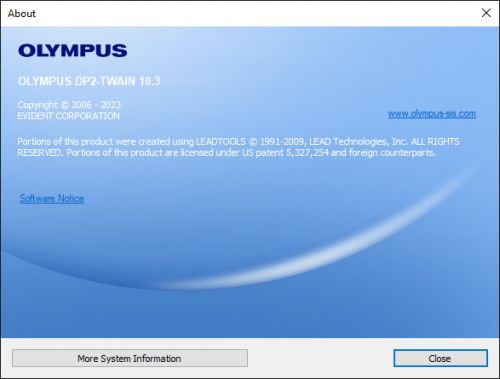
Main additions / changes of DP2-TWAIN V10.3
- Added support of the "Type 2" version of the following camera models: DP23, DP28, DP23M
- Note: support for the following Olympus legacy cameras has already been discontinued with DP2-TWAIN V10.2.1. Please do not update your software installation if you plan to continue to use the following cameras: DP21, DP26, DP72, DP80
Installation procedure
Before installation
- Before installation
This software comes with an "END-USER LICENSE AGREEMENT". Prior to downloading the software, please read the "END-USER LICENSE AGREEMENT". When downloading begins, it automatically assumes that you agreed to this AGREEMENT. - Administrator
The software cannot be installed unless the user account is registered as "Computer Administrator". If the user account is registered as a "Restricted Account", change it to the "Computer Administrator" account. (For the user account registration, refer to the instruction manual for your PC.)
* Exit out of all applications running before you update the software.
System Requirements
Operating System:
Microsoft Windows 10 - 64 Bit
CPU:
Intel® Xeon, Intel® Core i5, i7, i9 or equivalent (4 or more physical CPU cores recommended)
Memory:
8 GB RAM or more (dual channel recommended)
Display monitor:
1280 x 1024 pixel resolution (1920 x 1080 pixel or higher recommended) with 32 bit true colors
Interface:
FireWire, USB2.0 or USB3/3.1 port depending on camera model
Download
- Click the [Download] button at the top of this page.
*Download file name: [DP2-Twain V10.3 for Windows OS.zip] (approximately 500 MB) - When an entry form appears, enter all required fields.
- Click the [Download] button to start downloading.
Software installation
1) Double-Click the [setup] file in decompressed folder [DP2TWAIN V10.3].
![1) Double-Click the [setup] file in decompressed folder [DP2TWAIN V10.3].](https://industrial.evidentscientific.com.cn/modules/imageresizer/564/9d4/73d46cd01c/500x331p303x201.jpg)
2) Select [Yes] when the [User Account Control] dialog box is displayed.
![2) Select [Yes] when the [User Account Control] dialog box is displayed.](https://industrial.evidentscientific.com.cn/modules/imageresizer/aed/3c3/7f7520dd10/400x292p228x167.jpg)
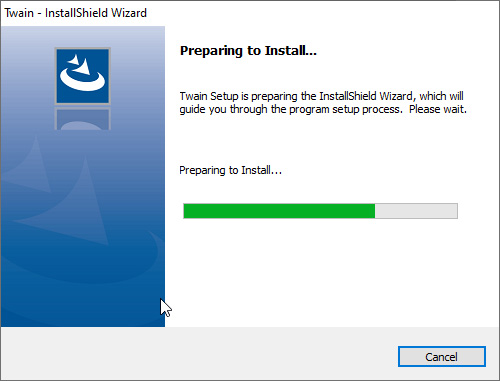
3) The Setup program of this software will start.
4) [License Agreement] will appear. Read the "OLYMPUS END-USER LICENSE AGREEMENT". If you agree, select [Yes] and click the [Next] button.
![4) [License Agreement] will appear. Read the OLYMPUS END-USER LICENSE AGREEMENT. If you agree, select [Yes] and click the [Next] button.](https://industrial.evidentscientific.com.cn/modules/imageresizer/0cc/973/0c6ff5dbee/500x381p250x191.jpg)
5) [Language settings] will appear. Choose a language provided by drop-down menu and click the [Next] button.
![5) [Language settings] will appear. Choose a language provided by drop-down menu and click the [Next] button.](https://industrial.evidentscientific.com.cn/data/Image/software/DP2-TWAIN/sf_dp2twain_winos-v103_07.jpg?rev=68CF)
6) [Customer Information] will appear. Enter the user's information and click the [Next] button.
![6) [Customer Information] will appear. Enter the user's information and click the [Next] button.](https://industrial.evidentscientific.com.cn/data/Image/software/DP2-TWAIN/sf_dp2twain_winos-v103_08.jpg?rev=68CF)
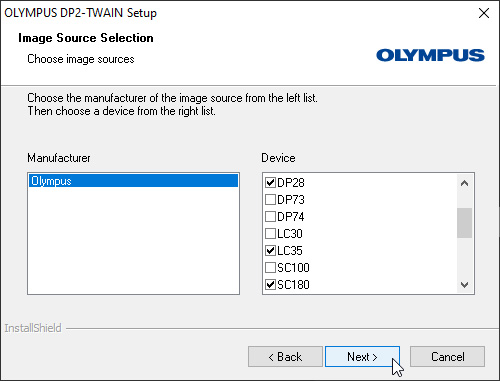
7) Select the camera(s) you want to use.
8) [Choose Destination Location] will appear. If you need to change the location for DP2-TWAIN installation, click the [Browse...] button and select the desired folder. Click the [Next] button.
![8) [Choose Destination Location] will appear. If you need to change the location for DP2-TWAIN installation, click the [Browse...] button and select the desired folder. Click the [Next] button.](https://industrial.evidentscientific.com.cn/data/Image/software/DP2-TWAIN/sf_dp2twain_winos-v103_10.jpg?rev=68CF)
9) [Select Additional Tasks] will appear. Un-check Add manuals shortcut to the desktop if a shortcut is not required. Click the [Next] button to start installation.
![9) [Select Additional Tasks] will appear. Un-check Add manuals shortcut to the desktop if a shortcut is not required. Click the [Next] button to start installation.](https://industrial.evidentscientific.com.cn/data/Image/software/DP2-TWAIN/sf_dp2twain_winos-v103_11.jpg?rev=68CF)
10) [Start Copying Files] will appear Click the [Next] button to start installation.
![10) [Start Copying Files] will appear Click the [Next] button to start installation.](https://industrial.evidentscientific.com.cn/data/Image/software/DP2-TWAIN/sf_dp2twain_winos-v103_12.jpg?rev=68CF)
11) The Setup program of this software will start.
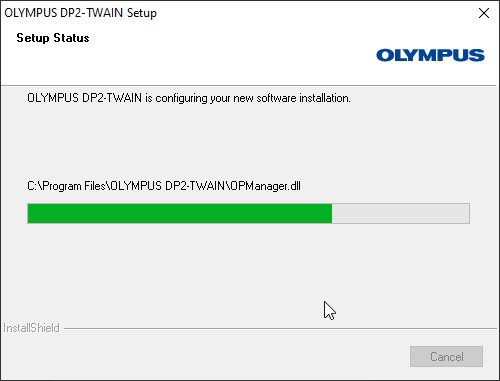
12) When installation is successful, click the [Next] button
![12) When installation is successful, click the [Next] button](https://industrial.evidentscientific.com.cn/data/Image/software/DP2-TWAIN/sf_dp2twain_winos-v103_14.jpg?rev=68CF)
13) [Connect Devices] will appear. In case you wish to install a FireWire device, pleas connect it to the computer, power it on, and carry on by clicking the [Start Configuration] icon. Else wise you can click on [Cancel]. The [Setup] window will close, the installation is completed.
![13) [Connect Devices] will appear. In case you wish to install a FireWire device, pleas connect it to the computer, power it on, and carry on by clicking the [Start Configuration] icon. Else wise you can click on [Cancel]. The [Setup] window will close, the installation is completed.](https://industrial.evidentscientific.com.cn/modules/imageresizer/47e/bb7/79d64486d3/500x351p303x213.jpg)
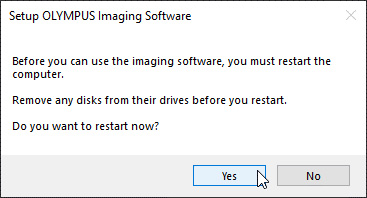
14) Please restart the PC before using the software for the first time.
| 选择下载语言 | 版本 |
|---|---|
| 10.3 |
您是否对本文介绍的产品或解决方案有什么疑问?